
Table of Contents
Please Note: Create your account once you have receive the invitation code from your school administrator.
Download Oodlins Parents app: #
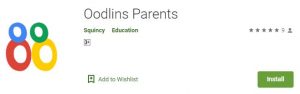
Download Oodlins Parents apps by visiting your phone’s Google Play Store or Apple App Store and search for “Oodlins Parents”. From here, you can see the app and install the latest version
To create an Oodlins Parent account: #
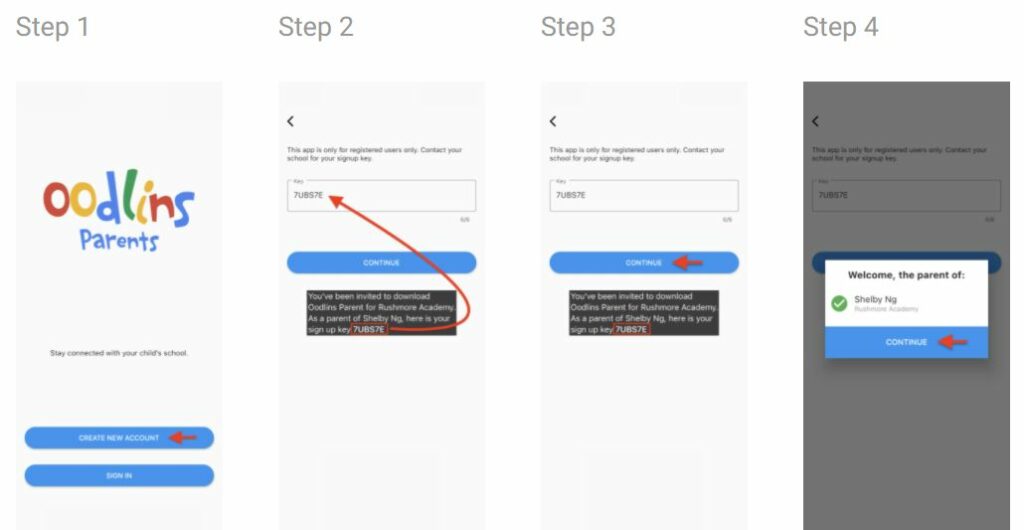
- Click Create New Account
- Key in the six characters signup key provided by your school
- Click Continue
- Confirm your child’s name and school name, click Continue
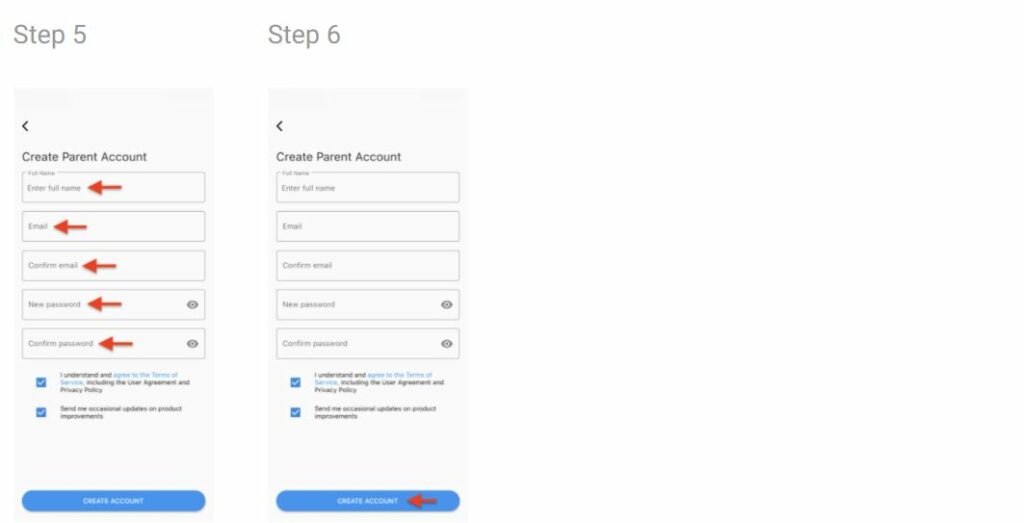
- Fill in all the necessary information ( * Note the e-mail and password created here will be used to access your Oodlins-Parents account. )
- Click Create Account
Getting an Error Message? #
Here are a couple of things you can check:
- Do not try to log into the Oodlins Parents if you have not received your Sign-up Key.
- If you have already created an account with Oodlins Parents, then you should be able to log in directly with your email and password, or reset your password if you do not know it.
- Expired/Invalid sign up key. Please contact your school administrator to regenerate a new sign-up key.
| Error message | What it means | What you can do |
| Student not found | The signup key is incorrect or has expired. | Contact your school to share a new signup key. |
| Create Account not clickable | The Terms of Service checkbox is not checked. | Agree and check the Terms of Service checkbox. |