
Table of Contents
Events in Oodlins allow schools to insert the school semester break, public holidays, events and special activities. Therefore, parents will be able to plan the children’s activities ahead.
To Create Event #
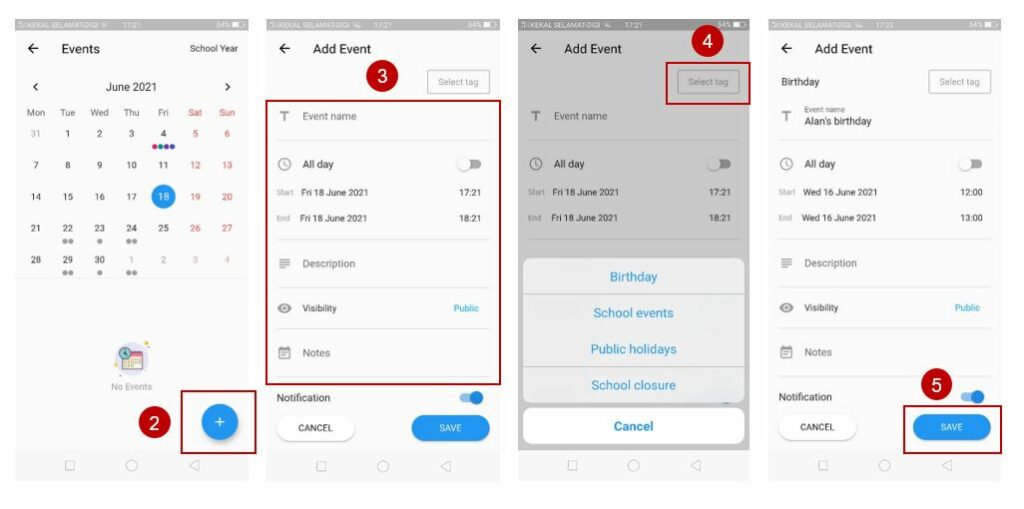
- From the home page, click on Events icon
- Click the + add button at the bottom right to create new event.
- Add an Event Name, Date, Location, Description and Note you would like to share.
- Select Tag
- School events would appear in red color.
- School closure would appear in blue color.
- Public holidays would appear in purple color.
- Birthday events would appear in green color.
- Click Save
Edit and Remove Events #
Events created can be amended according to the school’s situation. If it needs to be cancelled or changed, school can update in the app and it will notify the public.
- Click on the event
- Choose either to Edit or Delete event
- Click Save once your done