Table of Contents
Efficiently create new forms on the Oodlins portal with this step-by-step guide. Learn how to access the Management section, select Forms, and begin the form creation process.
How to create a new form on the Oodlins portal? #
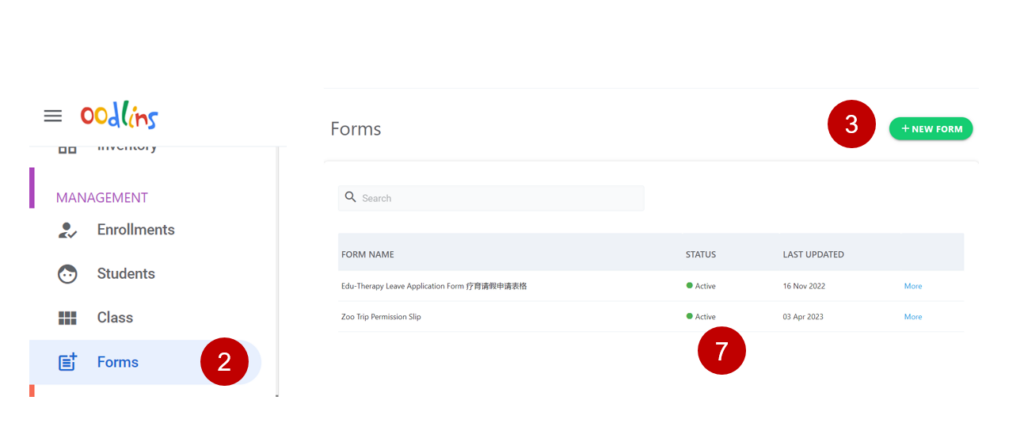
- Access the Oodlins portal at https://portal.oodlins.com and log in to your account.
- From the left-hand menu, select Management and then choose Forms.
- Click on the New Forms button to start creating a new form.
- As you design your form, keep in mind that filling in the student name and parent name fields is optional, as the system will automatically capture the information of the person completing the form.
- Continue adding form fields and adjusting settings as necessary to meet your requirements.
- Once you have finished creating the form, click on the Save or Submit button to finalize and make the form available to users.
- Check that the status is set to Active
- The new form will now be accessible in the Forms section of the Management menu for future editing, tracking, and reporting purposes.
How to add Forms into my Post module? #
Description: A step-by-step guide on adding a form to your Post module by navigating to the Post icon, creating a new post, attaching the form, and publishing the post.
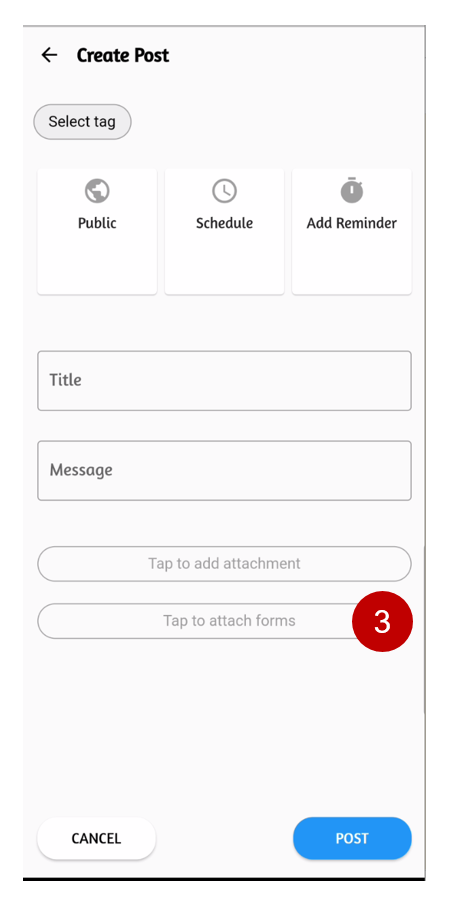
- From the home screen of your app or website, locate and click on the Post icon.
- Click on Create Post to begin composing a new post.
- Inside the post editor, look for the Tap to attach forms option or a similar form-attachment button.
- Click on the option or button to display a list of available forms. Select the newly created form you want to attach to the post.
- Complete the remaining sections of your post, such as the title and message, as needed.
- Once you have finished composing the post and attaching the form, click on the Post or Publish button to share the post with users.
- The new post will now be available in the Post module, containing the attached form for users to access and submit as needed.
How to view my Form Reponses? #
The steps for accessing and viewing the responses submitted by parents.
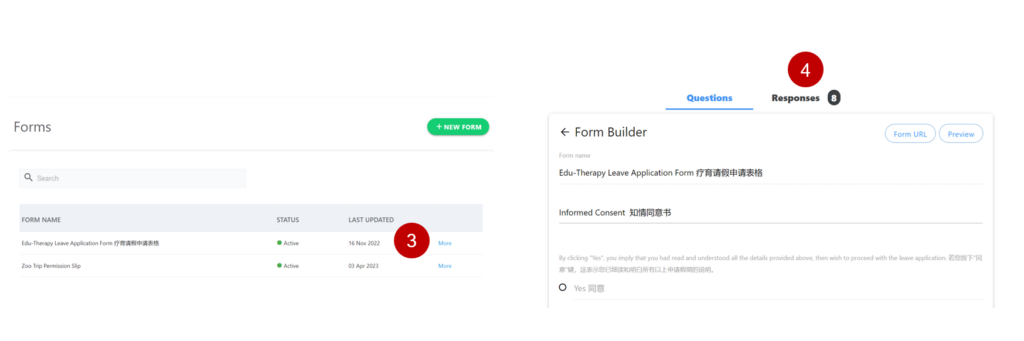
- Access the Oodlins portal at https://portal.oodlins.com and log in to your account.
- From the left-hand menu, select Management and then choose Forms.
- Choose the Forms from the lists.
- Click on the Responses option.